
便捷配送
快速可靠的配送,提供实时物流追踪与更新

Moorah 下载提供多种方式,让您可在 Android、iOS、Windows 和 macOS 设备上访问 Moorah。您可以点击本网站上与下载相关的按钮进入 Moorah 官方网站,并在适用时使用页脚中的 Google Play 或 App Store 按钮。您也可以按照下方针对各设备的步骤创建网站快捷方式,以便更快访问。
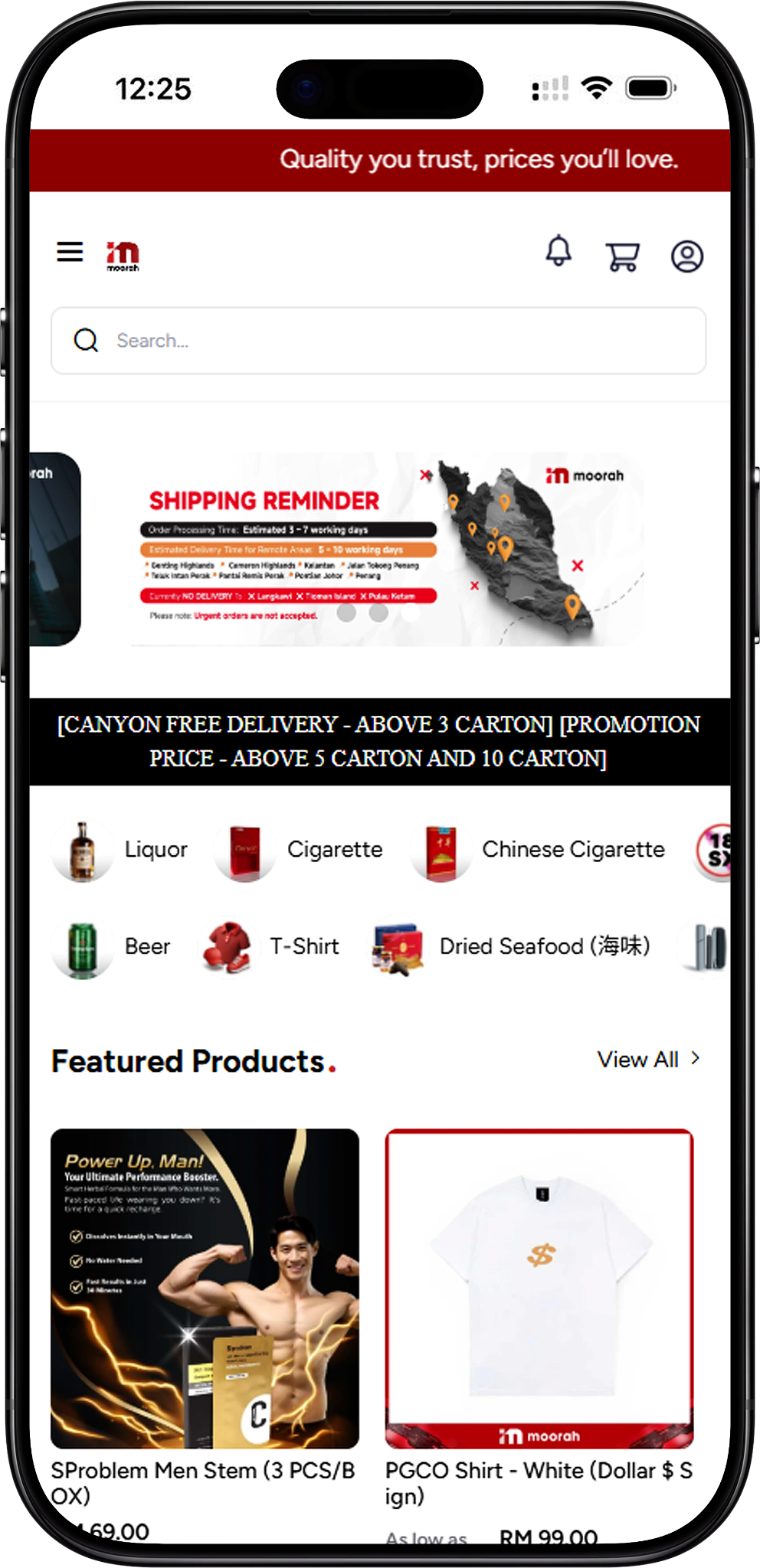
Android 用户可点击下载相关入口进入 Moorah 官方网站,并使用网站页脚显示的 Google Play 选项。
点击本网站上与下载相关的按钮,继续前往 Moorah 官方网站。
滚动至 Moorah 官方网站页脚,找到 Google Play 按钮。
选择 Google Play,并按照提示在您的 Android 设备上继续下载应用。
按照设备上的安装提示操作。完成后,即可使用已安装的应用访问 Moorah。
iPhone 和 iPad 用户可通过 Moorah 官方网站进入 iOS 下载选项,并继续前往 App Store。
点击本网站上与下载相关的按钮,打开 Moorah 官方网站。
向下滚动至网站页脚,选择其中显示的 App Store 选项。
按照 Moorah 提供的 App Store 路径操作,并查看适用于 iPhone 或 iPad 的安装选项。
按照设备上显示的说明完成应用安装,即可访问 Moorah。
桌面端用户可在支持的情况下使用 Moorah 网站页脚中显示的商店链接。Windows 用户可通过 Google Play 路径操作,macOS 用户则可使用网站提供的 App Store 路径。
Select the Download button on this website and continue to the official Moorah website.
Find the Google Play button in the footer and select it to continue with the available Windows download route.
Complete the instructions displayed for your Windows device to finish the setup.
Use the Download-related button on this website to reach the official Moorah website.
Scroll to the footer and choose the App Store button to continue with the available macOS option.
Follow the instructions provided for your Mac to complete the installation process.
Android users can also create a Home Screen shortcut through Chrome for quick website access without following the standard App download route.
Launch Google Chrome on your Android device.
Go to https://www.gfg.game/#/ in Chrome.
Tap the three-dot menu in the top-right corner of Chrome.
Choose Add to Home screen from the available menu options.
Enter a shortcut name, such as Good Fortune Gaming, and confirm. The website icon will then appear on your Android Home Screen.
Chrome may occasionally display Install app instead of Add to Home screen. If this occurs, try refreshing the page or switching to Airplane Mode temporarily. After restoring the internet connection, check the shortcut again.
iPhone and iPad users can create a website shortcut through Safari and place it directly on the Home Screen.
Launch Safari on your iPhone or iPad. The Add to Home Screen process should be completed through Safari.
访问 https://www.gfg.game/#/ 使用 Safari.
选择“分享”按钮,图标为带向上箭头的方块.
在可用的分享选项中找到并选择“添加到主屏幕”.
自定义快捷方式名称(例如 Moorah),然后点按“添加”。网站图标将出现在您的 iPhone 或 iPad 主屏幕上.
Windows 用户可通过多种方式创建桌面快捷方式,以便通过浏览器访问。请选择适合您的浏览器和使用习惯的方法.
使用 Chrome、Edge 或 Firefox 打开网站.
将浏览器地址栏中的网站图标拖到桌面上.
系统将创建桌面快捷方式,可用于在默认浏览器中打开网站.
使用 Google Chrome 访问 Good Fortune Gaming.
打开 Chrome 菜单,在可用工具下找到创建快捷方式选项,然后选择“创建快捷方式”.
将其命名为 Good Fortune Gaming。如有此选项,可在确认前选择“以窗口方式打开”.
通过 Microsoft Edge 访问 Good Fortune Gaming.
打开 Edge 菜单,选择“应用”,然后选择“将此网站安装为应用”.
安装完成后,可通过 Windows 提供的选项从桌面或开始菜单访问该网站.
在桌面空白处右键单击,选择“新建”,然后选择“快捷方式”.
粘贴 https://www.moorah.game/#/ 粘贴到快捷方式位置字段中.
输入您偏好的快捷方式名称,然后选择“完成”以创建桌面图标.
macOS 用户可以通过 Safari 或 Chrome 在桌面创建网站快捷方式,便于通过浏览器快速访问。
在 Mac 上使用 Safari 打开 Moorah 网站。
将 Safari 地址栏中的网址或网站图标拖到桌面上。
macOS 会在桌面上生成一个 .webloc 文件。需要在 Safari 中打开该网站时,双击此文件即可。
启动 Chrome 并打开 Moorah 网站。
打开 Chrome 菜单,选择可用的快捷方式创建选项,即可创建网站快捷方式。
输入您偏好的名称并确认,即可创建图标,方便快速访问。
如需在 macOS 上自定义快捷方式图标,请选中该快捷方式并打开“显示简介”,然后将您喜欢的图片应用到图标预览中。
点击本网站上的下载相关按钮,即可前往 Moorah 官方网站。页脚提供适用设备的 Google Play 和 App Store 下载选项。
可以。Android 用户可以通过 Google Play 下载,或通过 Chrome 将支持的网站添加到主屏幕。
可以。在 Safari 中打开支持的网站,点击“分享”菜单,然后选择“添加到主屏幕”即可创建图标。
下载流程提供 Windows 和 macOS 选项,并附有通过浏览器创建桌面快捷方式的方法。
不需要。主屏幕快捷方式通过浏览器访问网站,无需 APK 文件。
请选择适用于 Android、iOS、Windows 或 macOS 的 Moorah 下载选项,并按照您设备的安装或网站快捷方式步骤操作。
快速可靠的配送,提供实时物流追踪与更新

每邀请一位好友,即可赚取奖励

购买产品,有机会赢取大奖

每天上午 8 点至晚上 8 点为您提供帮助