
Seamless Shipping
Fast, reliable delivery with Real-time tracking and updates

Moorah Download provides different ways to access Moorah across Android, iOS, Windows and macOS devices. You can select a Download-related button on this website to visit the Moorah official website, then use the Google Play or App Store button in the footer where applicable. You can also follow the device-specific steps below to create a website shortcut for faster access.
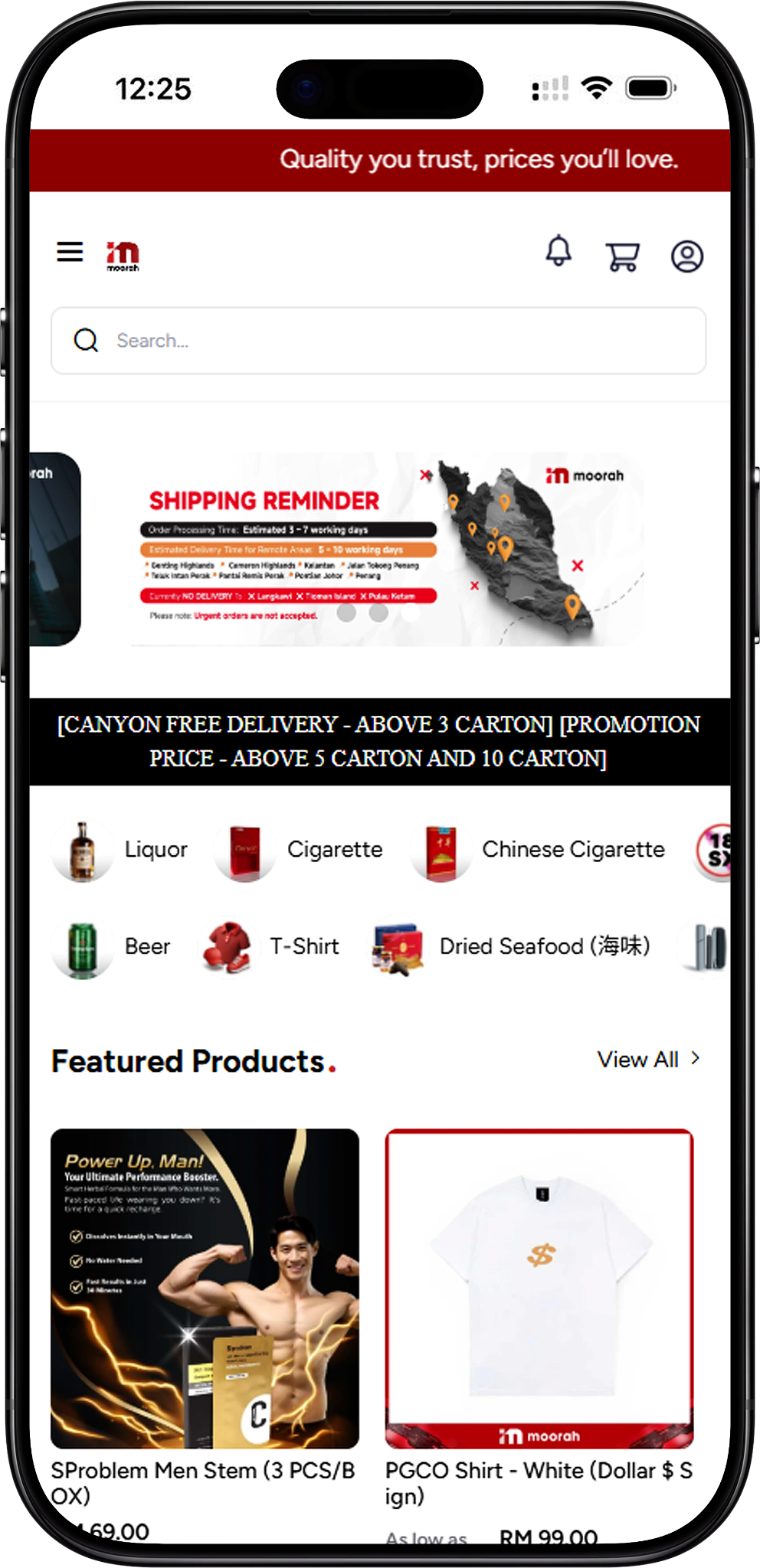
Android users can follow the available Download route to the Moorah official website and use the Google Play option displayed in the website footer.
Select the Download-related button on this website to continue to the Moorah official website.
Scroll to the footer of the Moorah official website and locate the Google Play button.
Select Google Play and follow the instructions presented for your Android device to continue with the App download.
Follow the installation prompts provided on your device. Once completed, use the installed App to access Moorah.
iPhone and iPad users can reach the iOS download option through the Moorah official website and continue through the App Store.
Use the Download-related button on this website to open the Moorah official website.
Scroll down to the website footer and select the App Store option shown there.
Follow the App Store route provided by Moorah and review the available installation option for your iPhone or iPad.
Complete the instructions shown on your device to install the App and access Moorah.
Desktop users can use the store links shown in the Moorah website footer where supported. Windows users can follow the Google Play route, while macOS users can use the App Store route provided on the website.
Select the Download button on this website and continue to the official Moorah website.
Find the Google Play button in the footer and select it to continue with the available Windows download route.
Complete the instructions displayed for your Windows device to finish the setup.
Use the Download-related button on this website to reach the official Moorah website.
Scroll to the footer and choose the App Store button to continue with the available macOS option.
Follow the instructions provided for your Mac to complete the installation process.
Android users can also create a Home Screen shortcut through Chrome for quick website access without following the standard App download route.
Launch Google Chrome on your Android device.
Go to https://www.gfg.game/#/ in Chrome.
Tap the three-dot menu in the top-right corner of Chrome.
Choose Add to Home screen from the available menu options.
Enter a shortcut name, such as Good Fortune Gaming, and confirm. The website icon will then appear on your Android Home Screen.
Chrome may occasionally display Install app instead of Add to Home screen. If this occurs, try refreshing the page or switching to Airplane Mode temporarily. After restoring the internet connection, check the shortcut again.
iPhone and iPad users can create a website shortcut through Safari and place it directly on the Home Screen.
Launch Safari on your iPhone or iPad. The Add to Home Screen process should be completed through Safari.
Visit https://www.gfg.game/#/ using Safari.
Select the Share button, represented by a square with an upward arrow.
Find and select Add to Home Screen from the available Share options.
Customize the shortcut name, such as Moorah, and tap Add. The website icon will appear on your iPhone or iPad Home Screen.
Windows users have several ways to create a desktop shortcut for browser-based access. Choose the method that suits your browser and preferred setup.
Open the website using Chrome, Edge or Firefox.
Drag the site icon from the browser address bar onto your Desktop.
A desktop shortcut will be created and can be used to open the website in your default browser.
Visit Good Fortune Gaming using Google Chrome.
Open the Chrome menu, navigate to the shortcut creation option under the available tools, and select Create Shortcut.
Name it Good Fortune Gaming. Where available, you may select Open as window before confirming the shortcut.
Visit Good Fortune Gaming through Microsoft Edge.
Open the Edge menu, select Apps, and choose Install this site as an app.
After installation, use the available Windows options to access the site from your Desktop or Start Menu.
Right-click an empty area of the Desktop and select New, followed by Shortcut.
Paste https://www.moorah.game/#/ into the shortcut location field.
Enter your preferred shortcut name and select Finish to create the desktop icon.
macOS users can create a desktop website shortcut through Safari or Chrome for convenient browser-based access.
Open the Moorah website using Safari on your Mac.
Drag the URL or website icon from Safari’s address bar onto the Desktop.
macOS creates a .webloc file on the Desktop. Double-click it whenever you want to open the website in Safari.
Launch Chrome and open the Moorah website.
Open Chrome’s menu and use the available shortcut creation option to create a website shortcut.
Enter your preferred name and confirm to create the icon for convenient access.
To customize a shortcut icon on macOS, select the shortcut and open Get Info, then apply your preferred image to the icon preview.
Select a Download-related button on this website to reach the Moorah official website. The footer provides Google Play and App Store options for supported devices.
Yes. Android users can follow the available Google Play route or add the supported website to their Home Screen through Chrome.
Yes. Open the supported website in Safari, use the Share menu, and select Add to Home Screen to create an icon.
The provided download process includes Windows and macOS options, along with browser-based shortcut methods for desktop access.
No. The Home Screen shortcut method uses the website through your browser and does not require an APK file.
Choose the Moorah Download option for Android, iOS, Windows or macOS and follow the available installation or website shortcut steps for your device.
Fast, reliable delivery with Real-time tracking and updates

Earn bonuses for every friend you invite

Win Jackpot by purchasing products

Get assistance on 8AM - 8PM daily